TAI Labs · Student Guide
Navigating Your Course, Workshop, or Lightning Lesson on Maven
This guide walks through where to find everything you need in Maven, from logging in to tracking your progress — the same walkthrough applies whether you're in a Course, a Workshop, or a Lightning Lesson.
Ten things to find first
Follow these in order the first time you join a new cohort.
Log in to Maven
Courses, Workshops, and Lightning Lessons all sit behind one Maven login. Use the email you registered with, or "Log in with Google" if that's how you signed up.
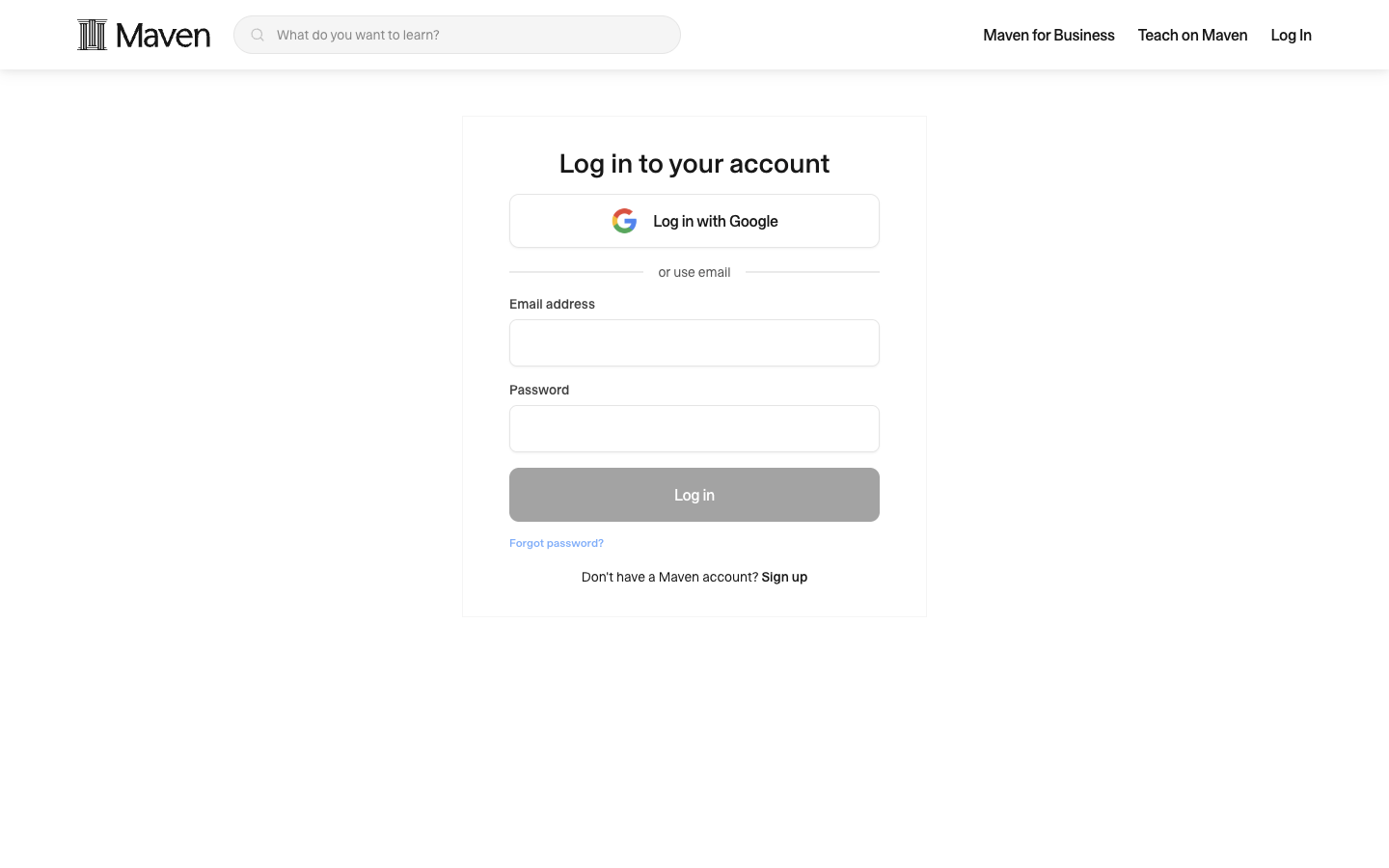
maven.com/login — the same login works for every AI Internship course, workshop, and Lightning Lesson.
Select your course from My Learning
Click your avatar (top right) then My learning. This lists everything you're enrolled in, each with a "Go to course" button that drops you straight into that course's Home.
Note: what shows up here depends on how you're enrolled — an instructor-only account won't see a student tile for its own course.
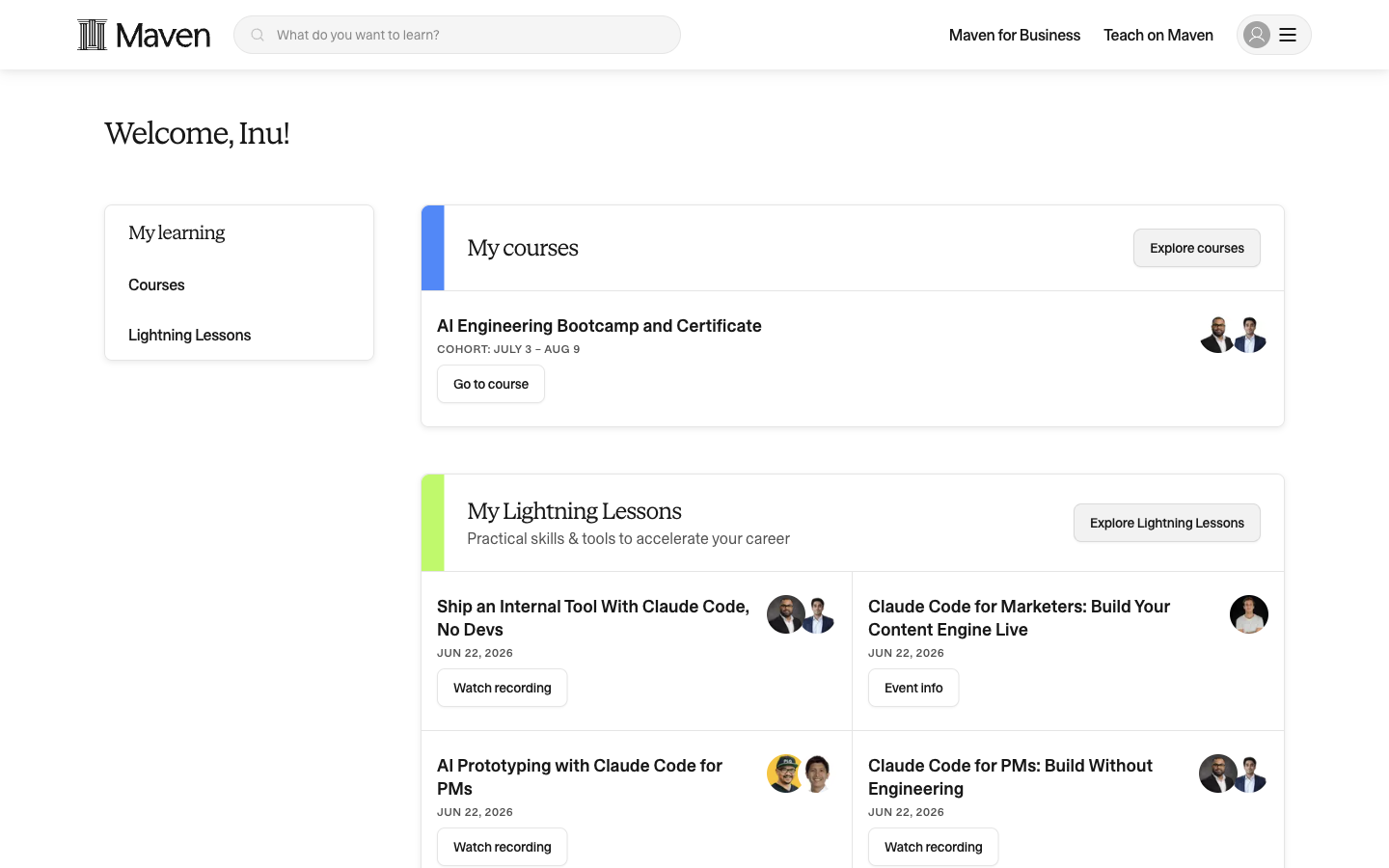
"My learning" on a real student account — every enrolled program shows up with a one-click "Go to course."
Do your pre-work first — this is Week 0
Before Week 1 starts, Pre-course is the first card on Home, and it's the most important thing to clear early. Expand it and you'll find everything you need before your cohort's first live session.
What's inside varies by program, but it typically includes a live kickoff session, an async orientation on how the course works, any setup you need to do beforehand, and a short exercise to get you thinking about your own goals or project.
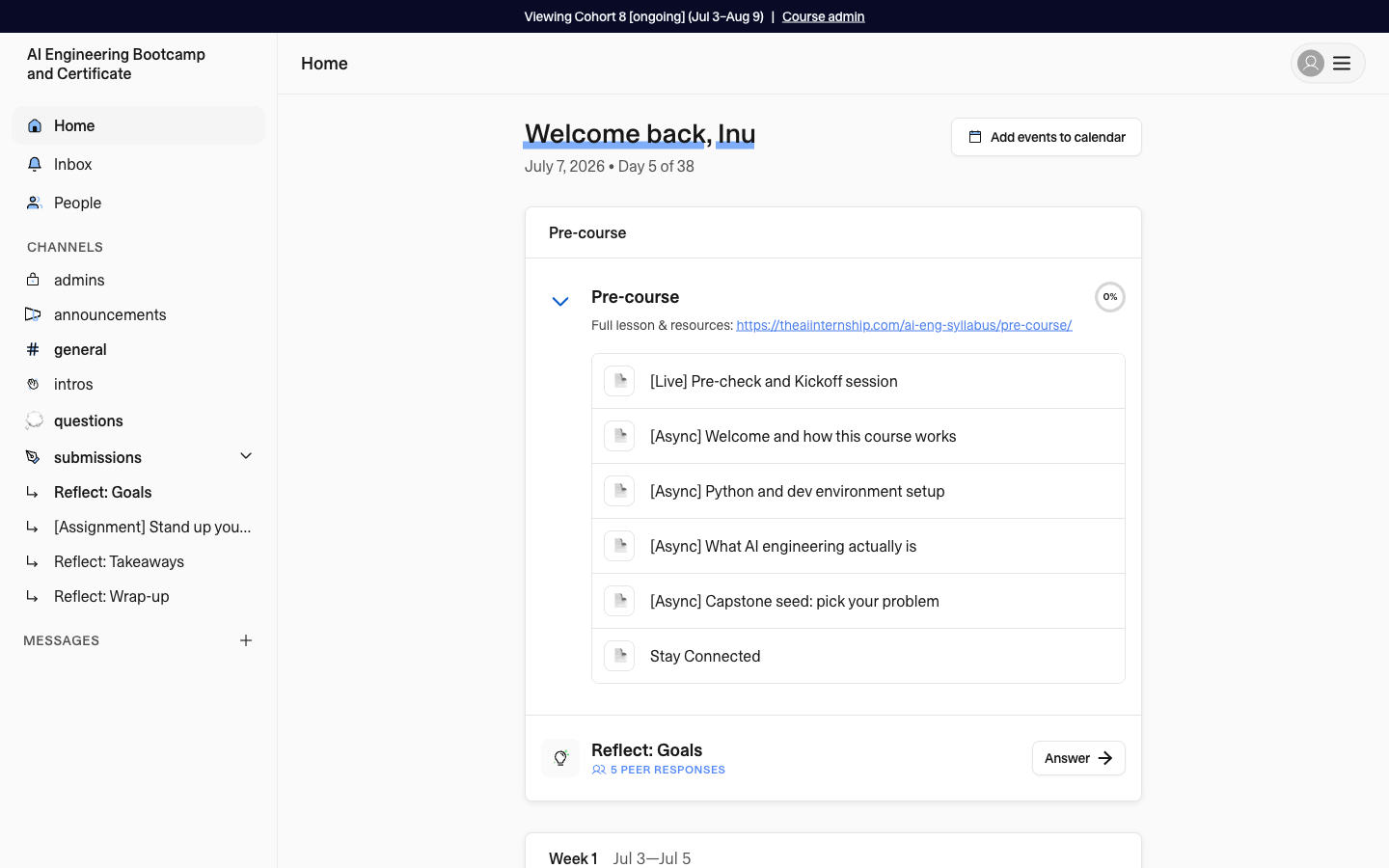
Pre-course, expanded — everything to complete before Week 1 begins.
Sync your calendar
Click "Add events to calendar" near the top of Home to get every live session, office hours slot, and deadline synced straight into your own calendar, so nothing depends on remembering to check Maven.
Good habit: do this on day one, then re-sync anytime the schedule changes.
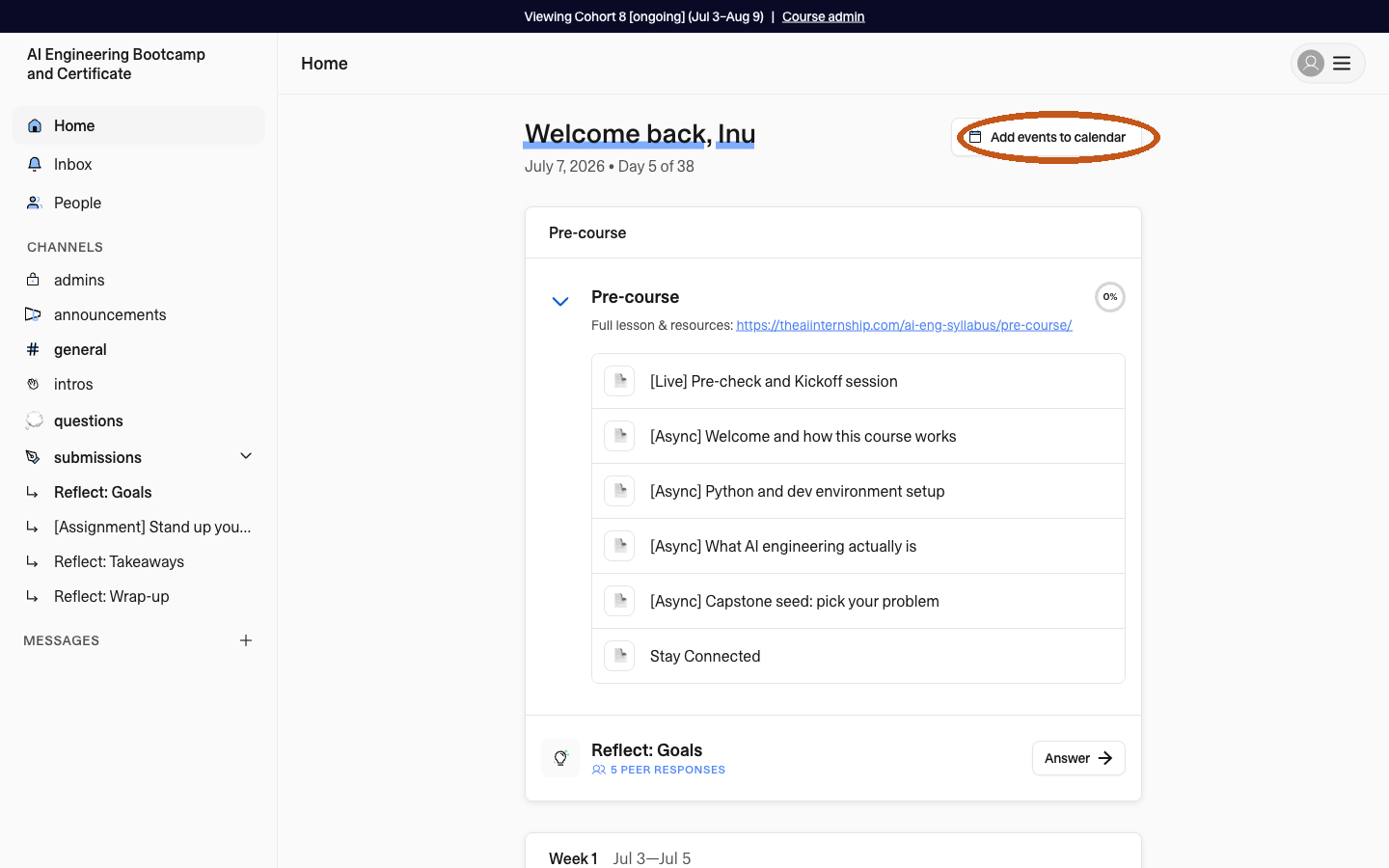
"Add events to calendar," top right of Home.
Know your Channels
The left sidebar lists your cohort's Channels, each one has a specific job:
- announcements: new announcements from The AI Internship.
- general: general chat with the cohort.
- intros: introduce yourself.
- questions: any question regarding the program.
- submissions: assignments and goals.
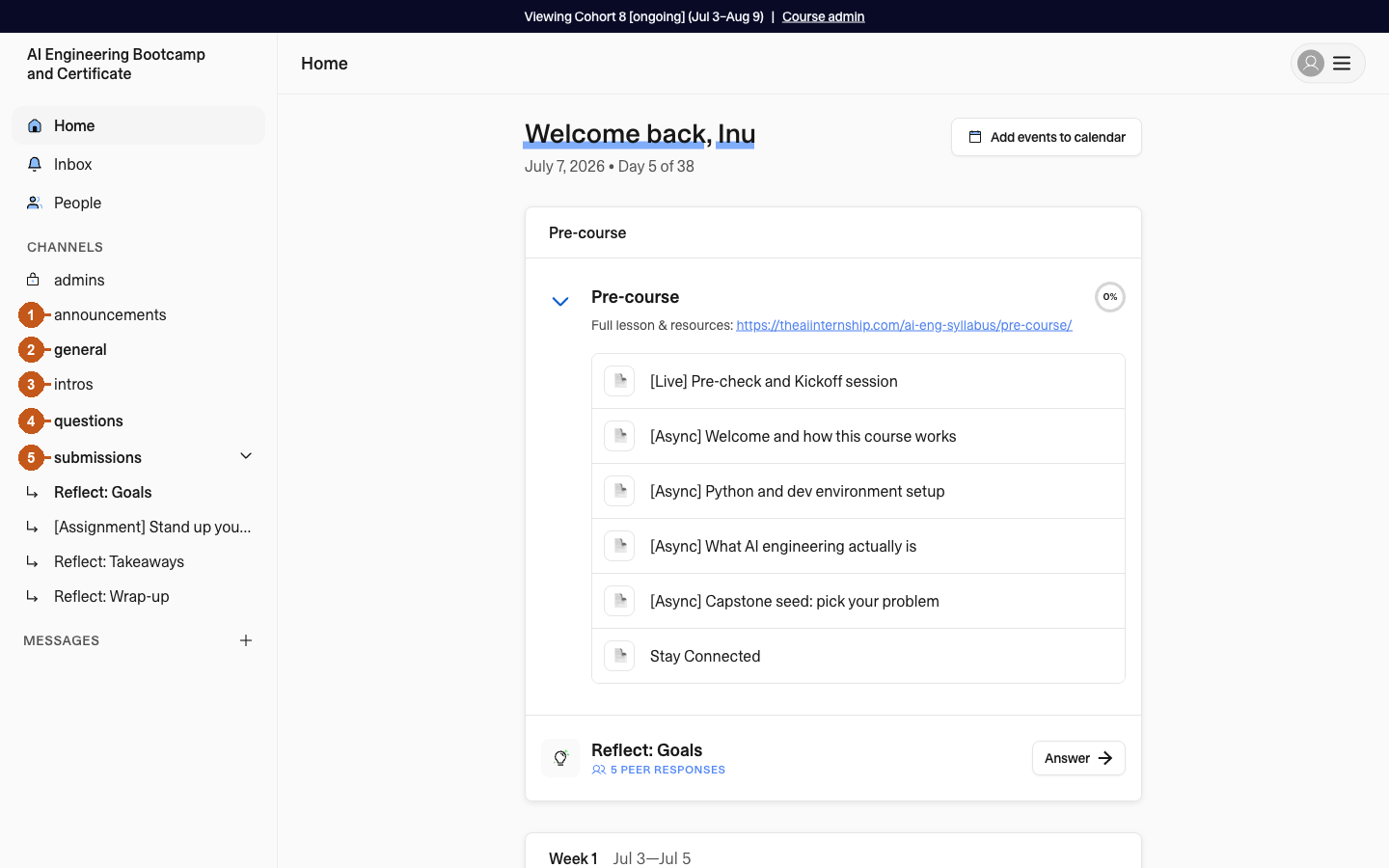
Each Channel numbered to match the list above.
Land on Home, and keep scrolling
Home is a running feed of what's due now, what's next, and what you've already opened — and it's also the entire syllabus end to end. There's no separate "syllabus" page: scroll past Pre-course and the current week to see every week through Post-course, each with an item count before you open it.
Look for: the week flagged "Class is here" — that's where you are right now, plus a completion ring and item count on every section.
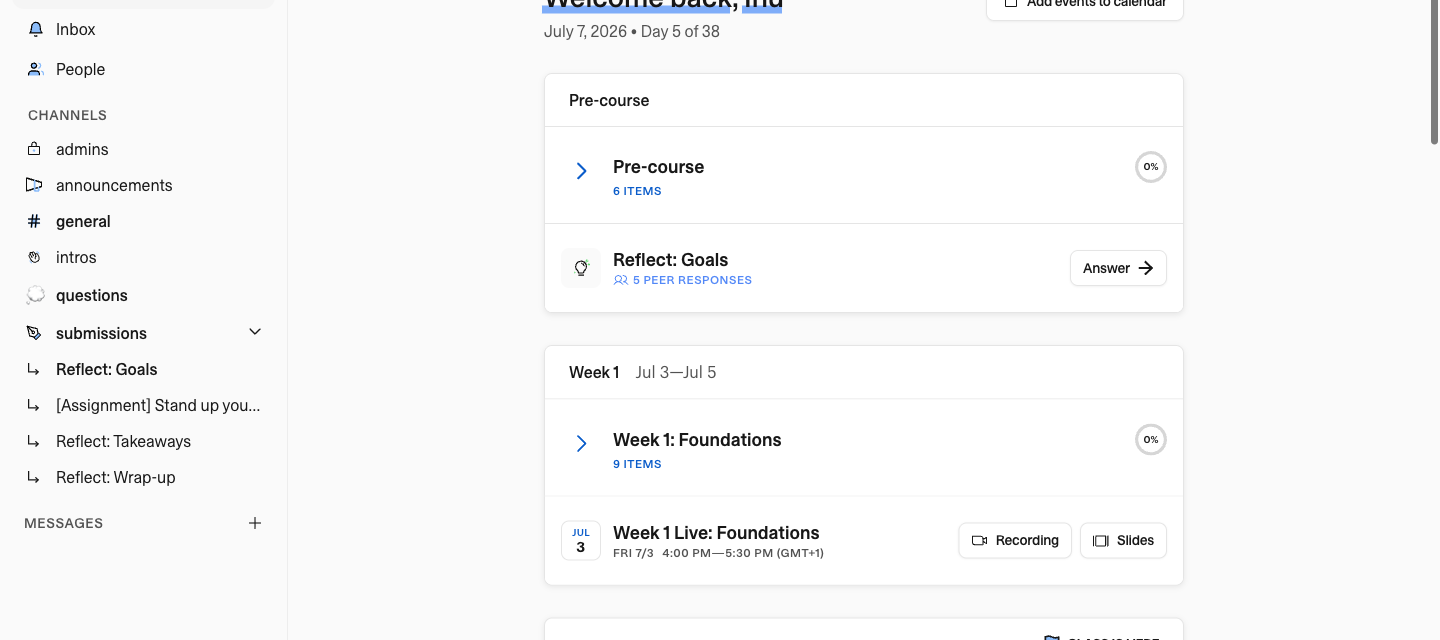
Scrolled past Pre-course: the prior week collapsed, the current week expanded and flagged "Class is here."
Join a live session
Every live session card can show up to three different things, depending on timing:
Recording and Slides: available within 24 hours after the session ends.
Join: the black button that appears on the day of the event — click it to join the live session.
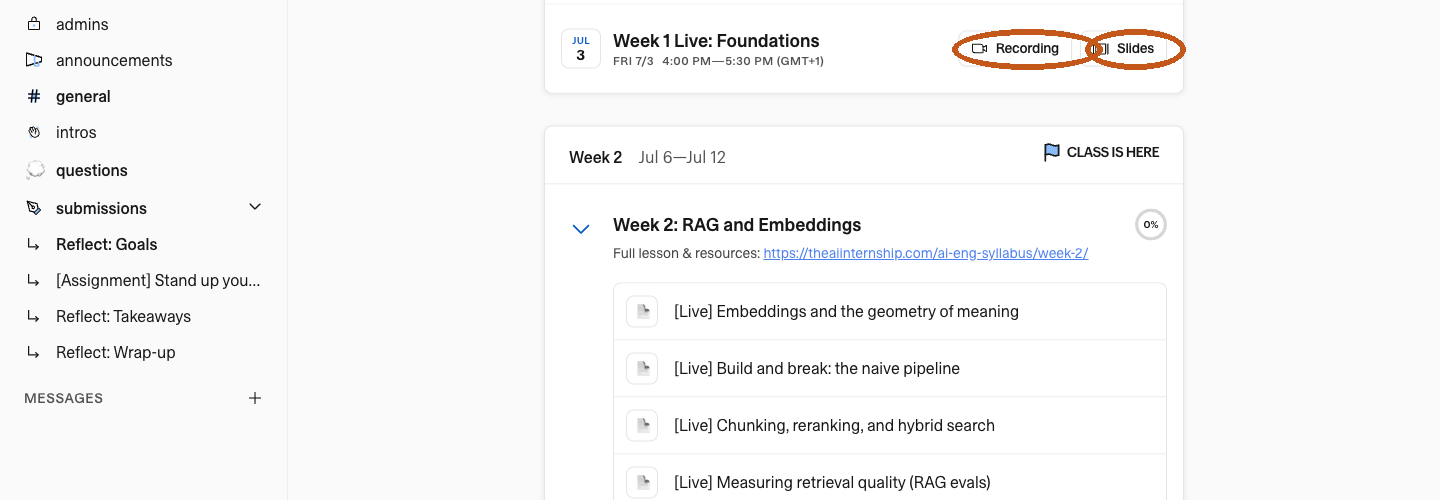
A past session: Recording and Slides, both available ~24 hours after.
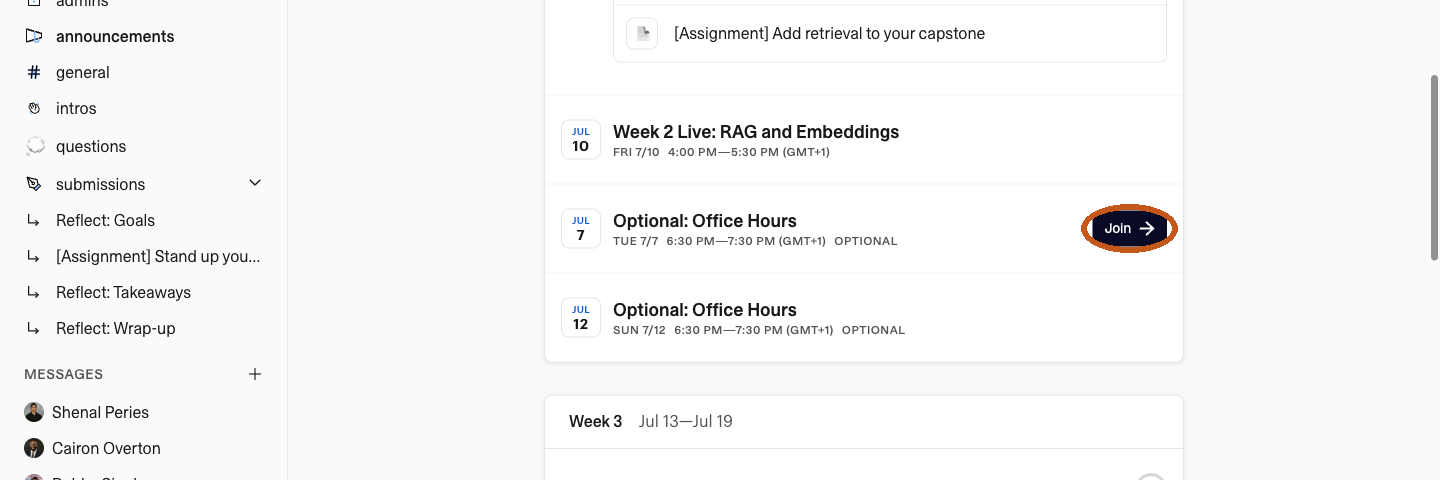
A session happening today: the black "Join" button instead.
Register for a Lightning Lesson
Lightning Lessons don't require enrolling in anything. Find one via the "Free lessons" tab on maven.com (or a direct link shared for that lesson), then register with just your email — no payment, no commitment.
Good to know: Lightning Lessons run 30 minutes and are hosted live on Zoom, often a preview of a full Course or Workshop on the same topic.
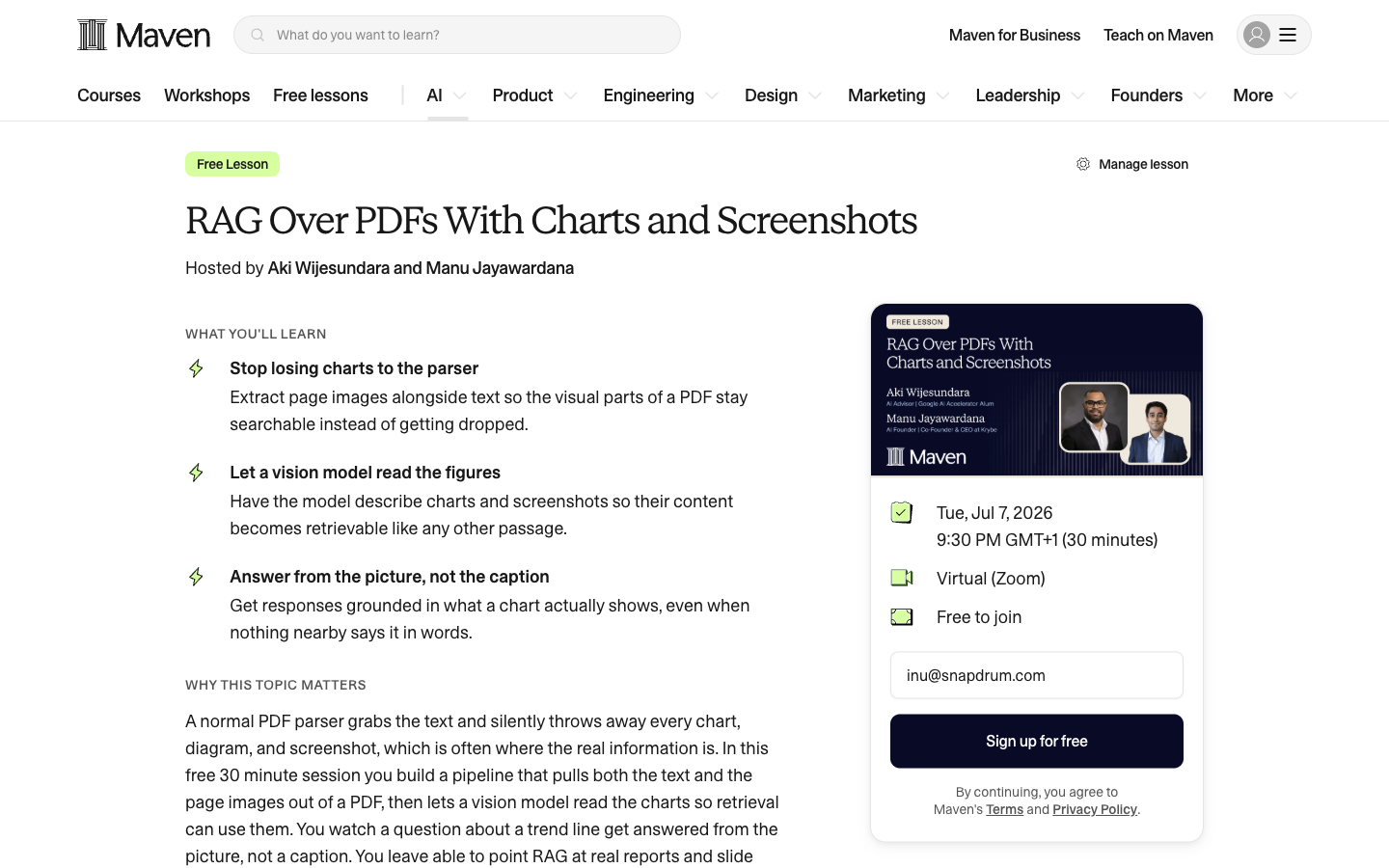
A live Lightning Lesson page: topic, hosts, "Free to join," and the one-field email signup.
Find Office Hours
Scattered between the weekly cards on Home, look for entries labelled "Optional: Office Hours." These are recurring drop-in sessions, separate from the scheduled curriculum. Come with questions — no need to prepare anything.
Current cadence: Tuesdays and Sundays, 6:30 to 7:30 PM UK time, with a one-click "Join" button right on the card.
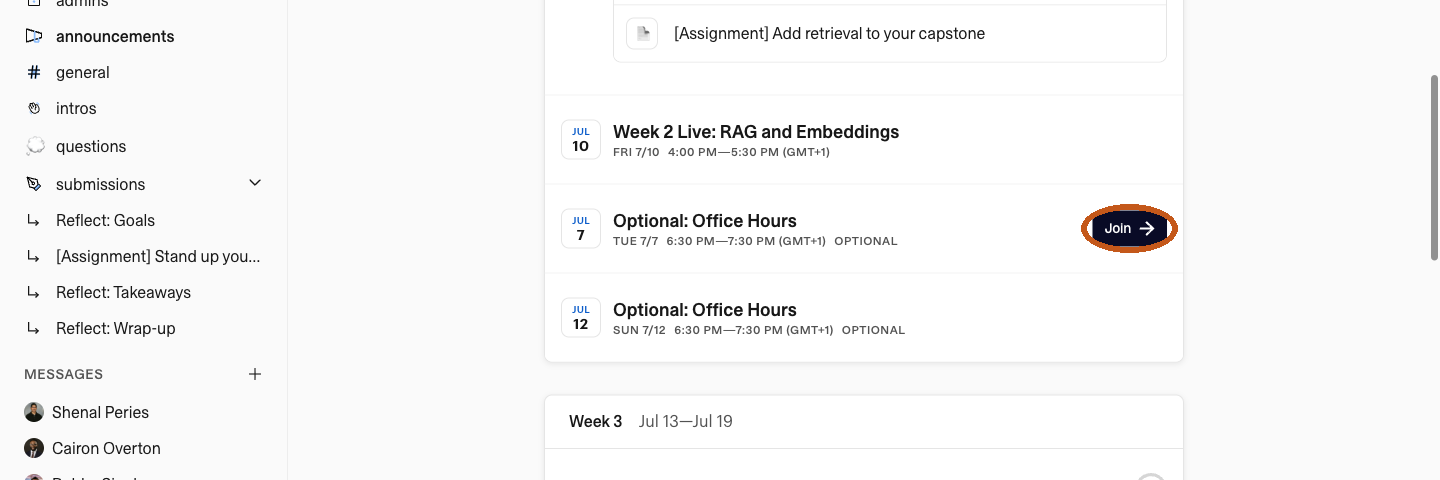
Two Office Hours slots sitting right after a week's live session, same format every week.
Track your own progress
Every section on Home carries a small completion ring next to its title. Pre- and post-course sections also include Reflect check-ins (Goals, Takeaways, Wrap-up) — answering these is what moves that ring, and lets you see how peers responded too.
Look for: a lightbulb icon next to "Reflect: Goals," a percentage ring beside each section name, and an "Answer →" button.

"Reflect: Goals" — peer responses already in, and an Answer button waiting on yours.
Check out other courses and services from TAI Labs: maven.com/theaiinternship